Note: This feature is not available to all Autobooks users. If Bulk Invoicing is not present in your Autobooks experience, contact your financial institution if you'd like to have this feature.
Picture it: You ran a special offer for a service you provide and it sold like gangbusters! That's great news! But now you have to create dozens of invoices for those sales and don't have a lot of time to create them one by one.
Autobooks has your back! With our Bulk Invoicing feature you can upload a file containing all of the invoice information, then send those invoices with one click!
Creating a Bulk Invoice File for Upload
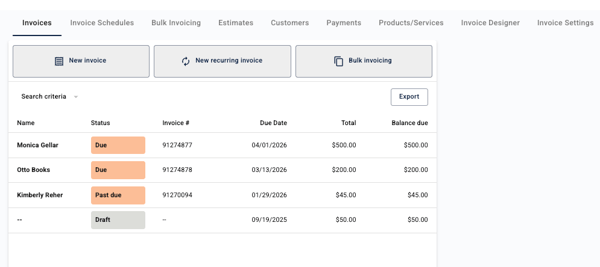
To begin the process, click the Bulk invoicing button on the Invoices tab OR click New Bulk Import on the Bulk Invoicing tab.
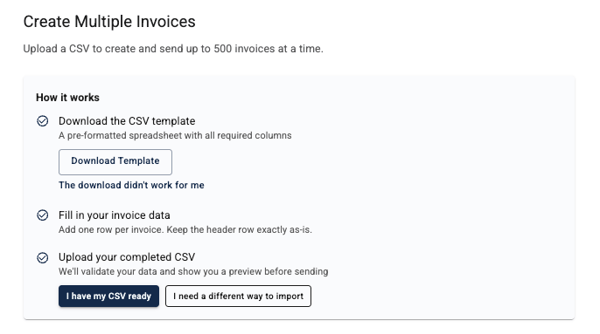
You'll see instructions on how to create a bulk invoice upload:
- Download our .CSV template. If you're unable to download it, click The download didn't work for me. Copy the URL displayed and paste it into a new browser (the download will begin automatically).
- Complete the template file with your invoice info. Each row is a new invoice. DO NOT change any column headers or insert more columns!
- Once you're ready, click I have my CSV ready to begin the file upload process.
Uploading your bulk invoice file
When you're ready, click I have my CSV ready to begin the file upload process. You'll see a rectangle for uploading on screen. You can either drag/drop your CSV file into the space, or click your mouse on the rectangle to search for the file on your device.
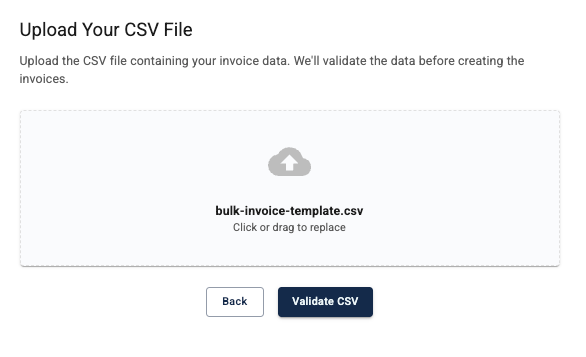
NOTE: if you attempt to upload a file that is NOT in a CSV format, the Validate CSV button will not appear active and you cannot proceed.
Sending your bulk invoices
You're almost done!
Click Validate CSV. We will check that the file format is correct (if there are file errors, we will display how to fix your file and reupload it).
If there are no file errors, we will display each invoice in your bulk invoice upload in a list. Click Send Invoices to initiate the invoices to your customers.
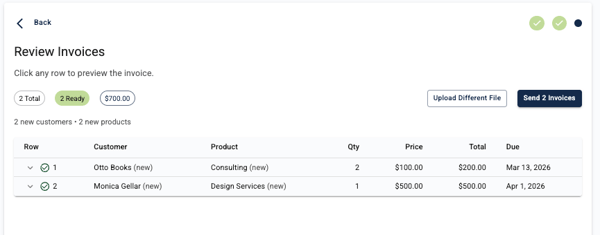
CAUTION: Check each one carefully before you click Send invoices! Once invoices are sent they cannot be edited, only cancelled individually.
If you find clerical errors, correct the CSV template on your device then click Upload Different File to re-upload the template.
Accessing invoices sent via bulk upload
You may view, cancel or re-send invoices sent via bulk upload in two ways:
- Go to the Invoices tab. Each invoice in any bulk upload will appear in the Invoices list. Highlight the invoice you wish to access, then select an action in the right-side menu that appears.
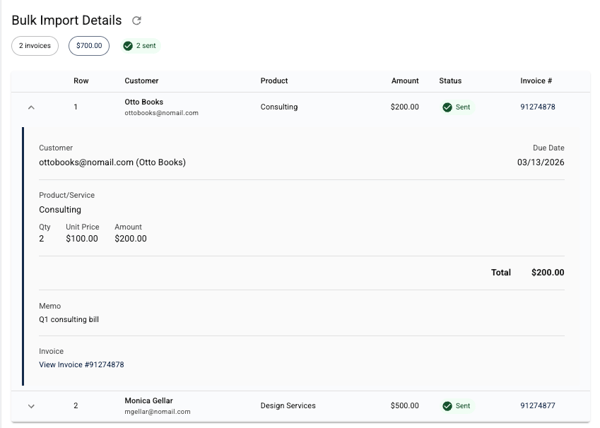
- Go to the Bulk Invoicing tab. Select a bulk invoice upload from the list to view the Bulk Import Details. Expand the invoice row for the invoice you wish to access. Click on View Invoice in the lower left corner to access the invoice action menu.