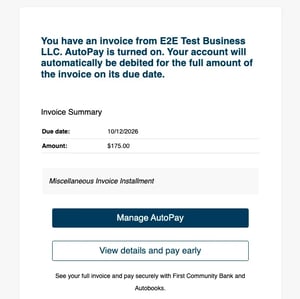
Your customers have the ability to save their payment method on file to automatically pay any future invoice you send to them.
AutoPay is available on invoices only. If you need information on recurring payments collected through your payment form, see our article: Collecting Recurring Payments through Payment Form.
When your customers enroll with AutoPay, they can avoid typing in their payment information each time you send them a new invoice. Instead, your customer will be able to have automatic payments made to the invoices that are due via the payment method they save on file.
You will be able to confirm your customer has enabled AutoPay in a few ways: via their Customer profile, via the most recent invoice you've sent them, or via a payment they've sent you in the Payments list.
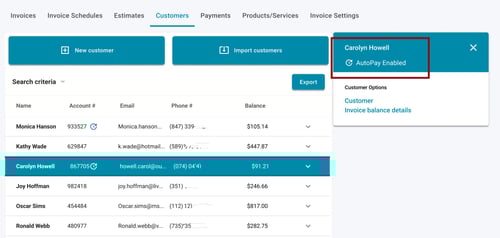
From the Customers list
-
Within Invoicing, click the Customers tab.
-
Select the customer name from your list.
-
Within the right-side menu just below the customer name, the AutoPay symbol and the words "AutoPay Enabled" will appear.
From the Invoice list
-
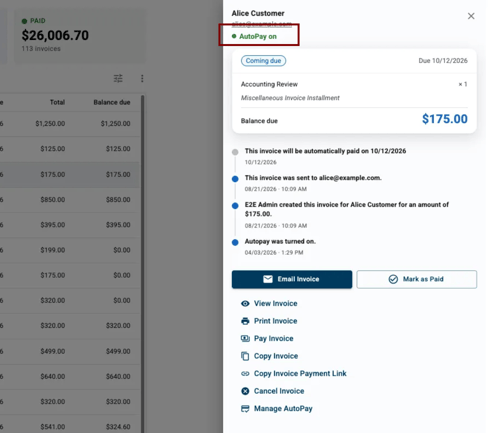
Search for the invoice you've sent to your customer in the Invoices list.
-
Click on the invoice to open the right-side menu options.
-
The right-side menu will indicate that AutoPay is enabled.
From the Payments list
-
Locate your customer's payment from the Payments list.
-
The Source column will show Invoice AutoPay if AutoPay is enabled for that customer (if AutoPay isn't enabled, the Source will be Invoice).
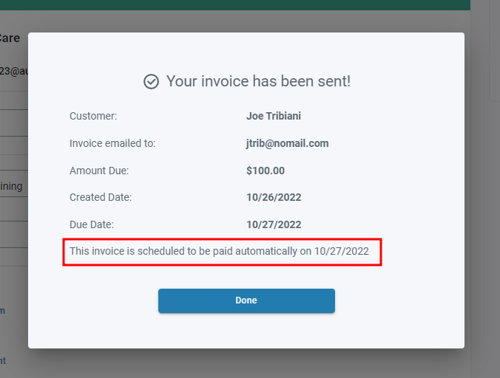
Once your customer has enabled AutoPay, the next invoice you create for them will alert you that the invoice will be paid automatically on the due date of the invoice.
The invoice notification email your customer receives will also have a message that the invoice will automatically be paid on the invoice due date. The customer is able to manage AutoPay from the notification.