
Picture it: You need to sell class registrations online, and Autobooks' Checkout Page tool the perfect thing to use. You have only 125 class slots available, and you're worried about over-selling (or under-selling) slots since there's no good way to track remaining capacity easily.
Now there is! You can now track inventory for a product, registrations, tickets, and more right within the Checkout Page tool! Here's how:
How to set inventory limits on a Checkout Page
When you create a new Checkout Page that has a limited inventory for sale, follow these steps:
- Click Create a new checkout page.
- Complete the checkout page builder as usual. Make sure you check the box labeled Limit how many are available (it appears just below the pricing box).
- Enter the total amount of inventory for sale in the Total available box.
- Click Create Checkout Page.
The quantity limit will tell you exactly how much inventory has sold, and how much is still available for sale.
How to manage a Checkout Page with an inventory limit
To see how much inventory is available for an item, click on the Checkout Page from your page list. You'll see an inventory indicator in the right-side menu.
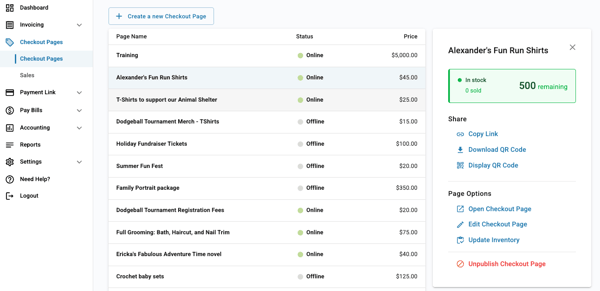
The indicator will change to show if you have low stock (less than 5 items left) or if your inventory is sold out.
If your stock does run low (or run out) your buyers will be aware.
- For low stock: we will restrict how many items your customer can buy based on how much inventory is left.
- For out of stock: we will post a note on your checkout page that your item is sold out.
💡 Pro Tip: Sell some your inventory another way? You can update the available inventory limit as needed. Just click on your Checkout Page in the list, then select Update Inventory from the right-side menu.