
When you spot a transaction that says Needs review, just click it to open the Quick Categorizer and handle it on the spot!
The Quick Categorizer walks you through your uncategorized transactions one at a time. You can assign a category, match a transaction to an existing record (like an invoice), split it across multiple categories, skip it for later, or exclude it from your reports entirely.
How to use the Quick Categorizer
Step 1 — Find your uncategorized transactions
-
Go to Accounting → Reconciliation in the left navigation menu.
-
On the Bank Reconciliation report, look for the expandable rows near the top:
-
Total Uncategorized Transactions — withdrawals that haven't been categorized yet
-
Total Uncategorized Deposits — deposits that haven't been categorized yet
-
-
Click the arrow next to either row to expand it and see the individual transactions. Each uncategorized transaction will show a Needs review link in the Book Desc column.
- Click Needs review on any transaction to open the Quick Categorizer for that transaction.
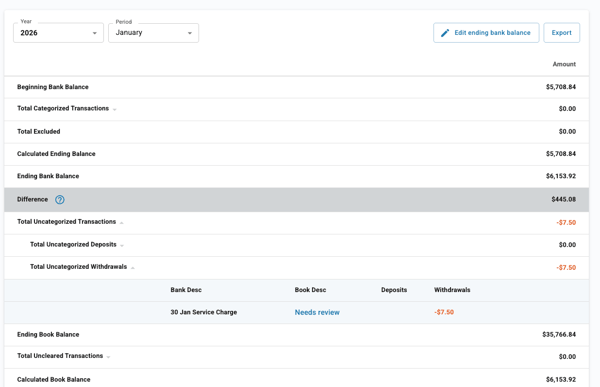
NOTE: The Quick Categorizer works within the time period currently selected on your Bank Reconciliation report. To categorize transactions from a different month, update the Year and Period dropdowns at the top of the report.
Step 2 — Categorize a transaction
When the Quick Categorizer opens, you'll see the transaction details — the type (deposit or withdrawal), amount, date, and your bank's description. Below that, you have two modes to choose from: Categorize and Match. Categorize mode is selected by default.
Assigning a single category to a transaction
-
Select a category. Tap Category to open a searchable list of your accounting categories. Can't find the right one? You can create a new category right from this screen.
-
Add a contact (optional). Tap Contact to link a customer or vendor to this transaction. You can search your existing contacts or add a new one.
-
Confirm the dollar amount. The amount is automatically filled in from your bank transaction. You don't need to change anything here.
-
Save. Tap Save to save your work. The transaction is categorized and the Quick Categorizer automatically moves to the next uncategorized transaction in your queue.
Splitting across multiple categories
If a transaction needs to be divided between more than one category — for example, an expense that covers both office supplies and equipment rental — you can split it.
- Tap Split to create two rows of categories.
-
Select a category for the first part of your split. Tap Category on the first row and enter the dollar amount for that portion of the transaction.
-
Tap Split again to add another row and enter the dollar amount for that category. Repeat for each additional category needed. A running total at the bottom shows how much is left to allocate.
-
Make sure the split amounts add up to the total transaction. The total of all rows must equal the full transaction amount before you can save.
-
Tap Save. All split categories are saved at once and the modal moves to the next transaction.
Step 3 - Match a transaction to an existing record
Sometimes a bank deposit or withdrawal already has a matching record in Autobooks — like an invoice you sent or a bill you logged. Instead of categorizing these from scratch, you can match them. Switch to Match mode using the toggle at the top of the Quick Categorizer.
When Autobooks finds a match for you
If Autobooks detects a likely match, it will automatically switch to Match mode and show a "Good news — we found a match!" banner. Review the suggested match details and if it looks right, tap Accept match.
Not the right match? Tap This isn't a match to dismiss the suggestion. You can then categorize the transaction manually or search for a different match.
Manually match a transaction
If no match is suggested, you can search for one manually while in Match mode:
-
Use the search bar to find the record. Type a name, invoice number, or amount to filter the list of available book transactions.
-
Check the box next to the matching record (or records). You can select more than one record if the bank transaction covers multiple invoices or entries.
-
Categorize any remaining balance. If the matched total is less than the bank transaction amount, you'll be prompted to categorize the difference before saving.
-
Tap Save match. The match is confirmed and the Quick Categorizer advances to the next transaction.
Step 4 - Skip or exclude a transaction
If you're not ready to categorize a transaction right now, or if a transaction shouldn't appear in your financial reports at all:
-
Open the Options menu (⋮) in the top-right corner of the Quick Categorizer. Select either:
- Skip for now - Moves the transaction to the end of your queue. After you've handled everything else, you'll be given the option to come back and categorize the skipped transactions. If you close the Quick Categorizer without returning to them, they'll remain uncategorized.
- Exclude transaction - Permanently removes the transaction from your financial reports. Use this for transactions that aren't related to your business, such as personal expenses that show up in a shared account. A confirmation prompt will appear before the action is completed.
- Skip for now - Moves the transaction to the end of your queue. After you've handled everything else, you'll be given the option to come back and categorize the skipped transactions. If you close the Quick Categorizer without returning to them, they'll remain uncategorized.
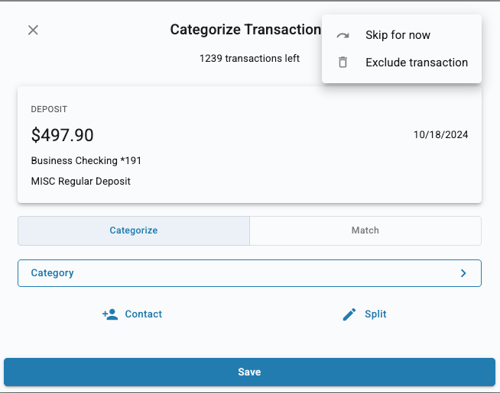
WARNING: Excluding a transaction is permanent and cannot be undone. It will be removed from all of your financial reports. Only exclude transactions that genuinely don't belong in your business records.