
Reconciling a bank account with your books confirms that the business’s records (the General Ledger cash account) match what actually happened at the bank. Here’s why that matters:
- Accurate cash position: You'll know how much money you really have, which drives decisions about paying bills, payroll and spending.
- Catches errors: It surfaces missed, duplicated or miscategorized transactions, plus bank errors.
- Detects fraud early: Unauthorized withdrawals, altered checks or unexpected charges show up as differences between the bank and the books.
- Accounts for timing differences: It identifies items that haven’t cleared yet, such as outstanding checks and deposits in transit, so they aren’t mistaken for errors.
- Reliable financial statements: Cash feeds the balance sheet, income statement and cash flow reports. If cash is wrong, those reports are wrong too.
- Tax and audit readiness: Reconciled books support tax filings, lender requests and audits, and cut down cleanup at year-end.
- Keeps cleanup small: Reconciling regularly, usually monthly, keeps discrepancies small and easy to trace. Waiting lets them pile up and become hard to explain.
For businesses with more than one bank account, each account needs its own reconciliation. Otherwise, errors in the secondary accounts go unnoticed.
How to reconcile your business bank accounts
You'll need to navigate to the Accounting tab within Autobooks to get started. Click the Reconciliation tab within Accounting (or click the Review and Reconcile tile on the Insights page).
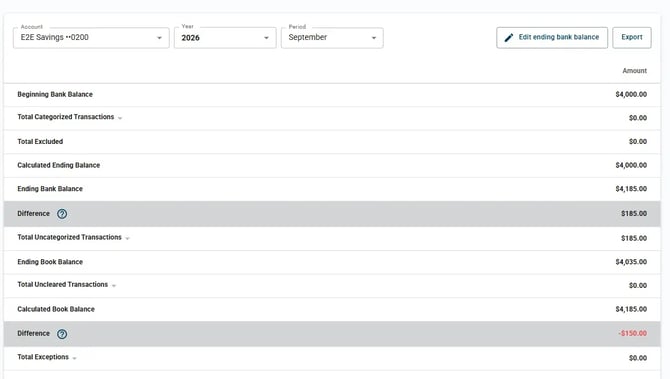
- Select the account, the year and the month you wish to reconcile from the Account dropdown. You'll see a summary of the account for the time period you've selected.
- Expand the Total Uncategorized Transactions line. You'll see the total of uncategorized deposits and withdrawals.
- If a dollar amount appears for either, click on the line item to see actions you can take to categorize them. See our Categorizing Transactions article for step-by-step instructions.
- Next, address Total Uncleared Transactions. You can click Make exception if you wish to exclude the item from the total reconciliation.
- If your Difference line item is not zero, check to see if the Ending Bank Balance in Autobooks matches that month's bank statement. If you need to adjust the Autoboks Ending Bank Balance, click Edit ending bank balance at the top of the screen.
You may export the reconciliation details by clicking the Export button at the top right corner of the screen. This will download a Reconciliation report to your device in a .CSV format.
This feature is available only for those that subscribe monthly to our Accounting and Reporting services.
If you are NOT a monthly subscriber and would like more information, please view: How to upgrade to add Accounting and Reporting features to my Autobooks account.